Scheduling
Set a time to teleport or start a route. Keep Stealth open and connected for scheduled actions.
Change your iPhone location from Windows or the Stealth iPhone app. Teleport anywhere or create a route. No jailbreak needed.
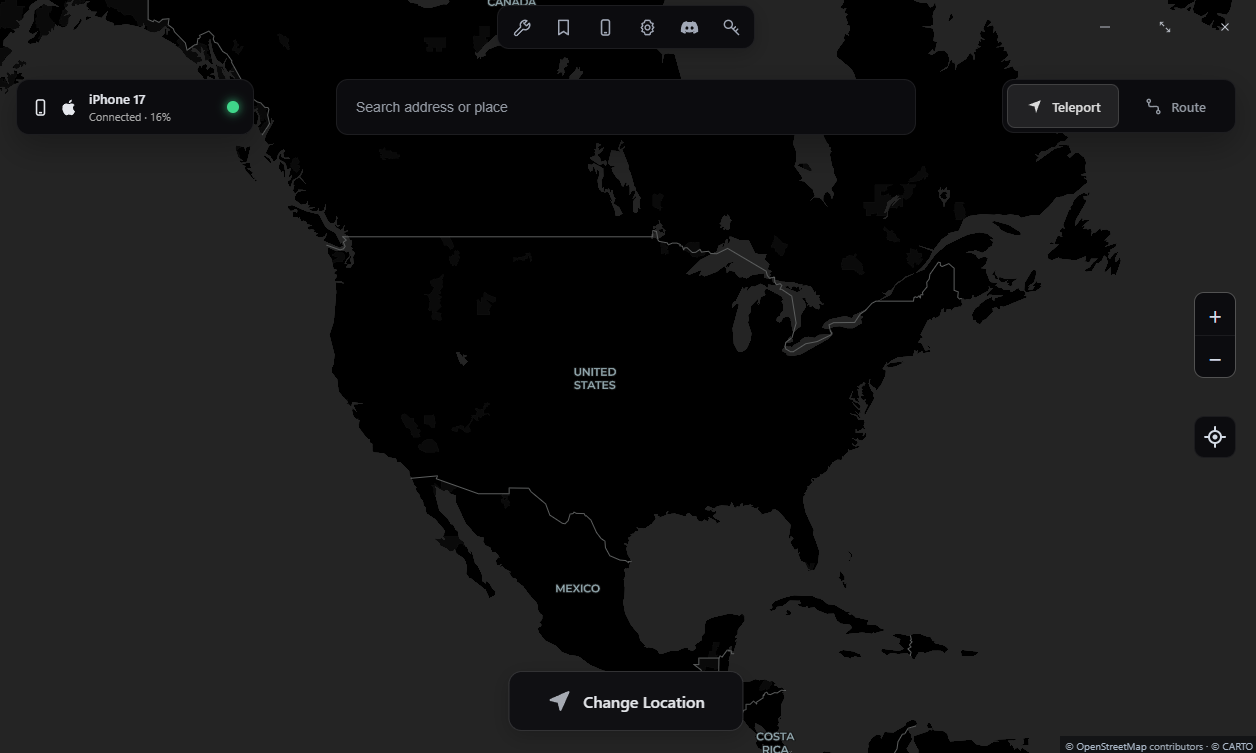
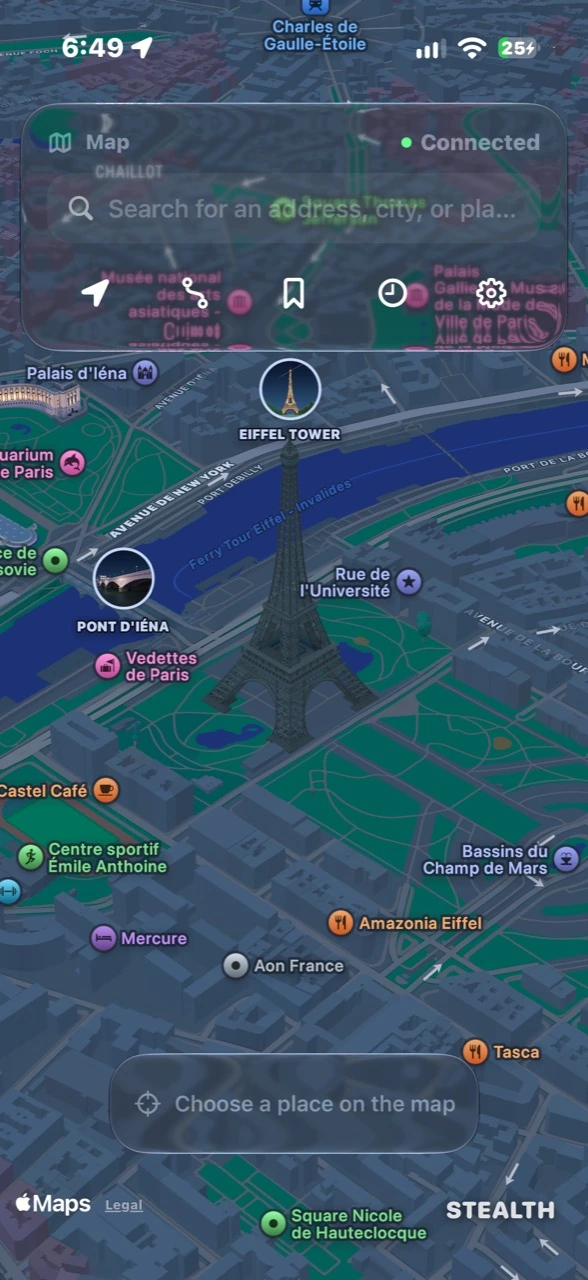
Set a time to teleport or start a route. Keep Stealth open and connected for scheduled actions.
Return to places you have used before.
Schedule a walk, drive, or bike ride. You name it.
Keep your favorite places ready for next time.
Set a stop timer while Stealth is open and connected. Check that your real location returns when the session ends.
Away from Wi-Fi? You can still spoof your location as long as you have cellular data.
WINDOWS + IPHONE
One account. Location control on both devices.
Card required. Then $42.99/year unless canceled before the trial ends. New eligible accounts only.
Windows PC + USB data cable required for initial setup
Requires iPhone with iOS 17.4+ · Mac setup is not available
You need a Windows PC for the initial iPhone app installation. After setup, you can control your location from the iPhone app without keeping the computer connected.
iOS 17.4 or later and Developer Mode enabled on your iPhone, including when controlling location from Windows. First install Apple Devices on Windows, connect and trust your iPhone, then start Install Stealth Mobile. Developer Mode may not appear until pairing starts. Open Settings → Privacy & Security → Developer Mode, turn it on, restart, and confirm Turn On after restarting. Windows Developer Mode is not required.
No. Stealth uses supported developer-device tools and a signed iPhone app. Developer Mode must be enabled on your iPhone.
Stealth supports location simulation for apps such as Find My, Life360, Snapchat, and other apps that use your location. Results depend on the app and iOS version; compatibility is not guaranteed. Stealth is independent of these services.