Use Stealth · Map
Search and choose a place
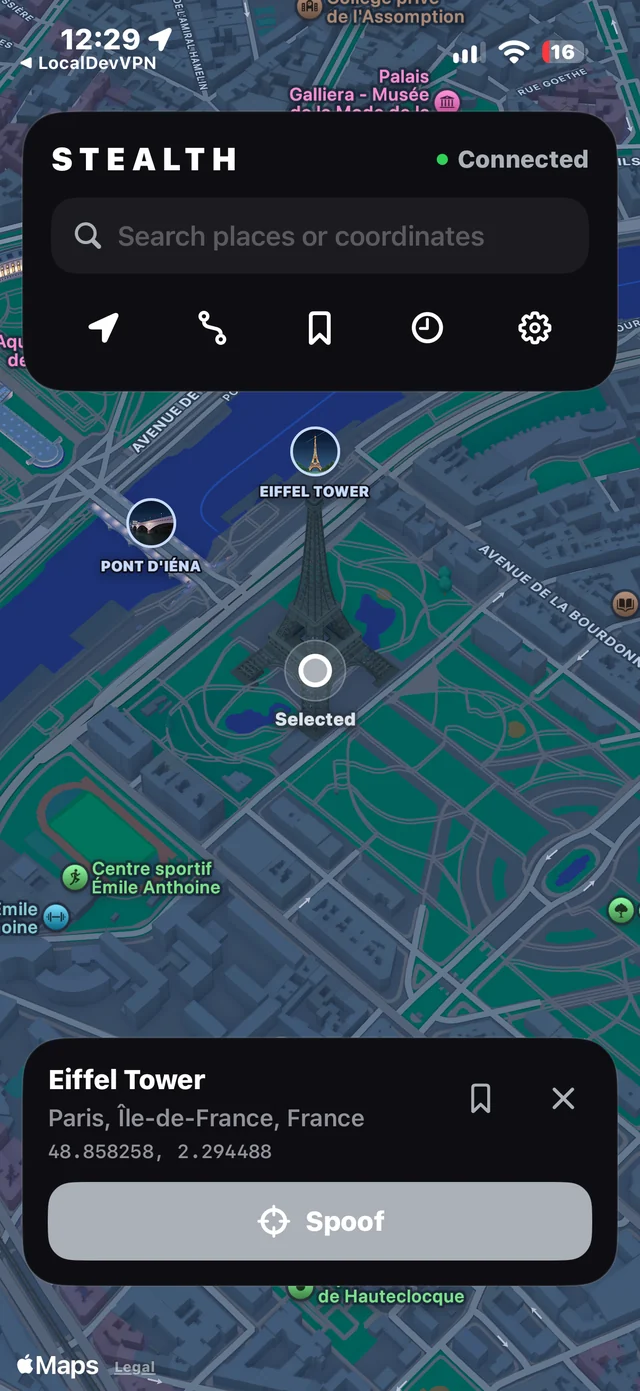
Use search for a named place or address, select a result, or tap directly on the map. Stealth keeps the chosen destination visible before you start.
Search for a named place
- Tap the search field and enter a landmark, airport, business, address, city, or coordinates.
- Choose the matching suggestion from the results list.
- Stealth centers the map and updates the selected destination card. The card may show a place name and area, or coordinates if a named place is not available.
- On iPhone, selecting a result closes the keyboard so the map controls are visible again.
Drop a pin
Tap the map at the point you want. The selected coordinates appear in the destination card. Zoom in when you need a more precise point; nearby labels on the map can help you orient yourself.
Enter coordinates
Paste latitude and longitude into search. Stealth accepts coordinate pairs and supported route/coordinate import formats. Check that latitude is between −90 and 90 and longitude is between −180 and 180.
Start or clear a location
Review the selected place, then use the location action shown at the bottom of the app. To end a session, use the app’s stop or return-to-location control. The exact map display and refresh timing are controlled by iOS and other apps.
Map labels and named-place matches come from map search data. If a location is not labeled, you can still choose it by dropping a pin.
For movement between places, see Create and schedule a route →
Search results and dropped pins are different
A search result represents a place returned by the map provider. A pin dropped on the map represents the exact coordinate you selected. A nearby shop name should not be treated as the address of every point around it. Check the coordinate line when a place label seems surprising.
Landmarks such as airports and the Eiffel Tower can have useful names, but ordinary streets and houses should still be identified by their address or coordinate. Names can vary by provider and language. If precision matters, zoom in, select the point again, and compare the coordinate rather than relying on the nearest label.
Save a place you will use again
Use the bookmark control on the selected destination to save it. Reopen saved places from the bookmark controls instead of retyping the same address. A saved location is a destination shortcut; selecting it still does not start spoofing until you use the session control.
Recent searches and saved places are different lists. Check which list you are viewing before removing an entry. If you share a screenshot of a saved place, remember it can expose a home or work address.
Check the result in another app
After Spoof starts, allow the other app time to request a fresh location. Some apps keep an earlier position on screen until refreshed. Others combine system location with IP address, account history, or their own checks. A map label changing in Stealth does not guarantee every app will immediately display the same place.
Stealth is intended for apps that use device location, including Find My, Life360, and Snapchat, subject to their behavior and restrictions. It does not change your network’s IP address. Start with a simple point test before assuming a route or an app’s cached display is a connection failure.
Still need a hand?
For community help, visit Get support. For private account or billing questions, email support@getstealth.net. Include your app version, iOS or Windows version, the step you reached, and the exact error. A screenshot of the error helps; hide email addresses and other personal details first. Never send passwords, verification codes, pairing files, or signing certificates.