Setup · iPhone
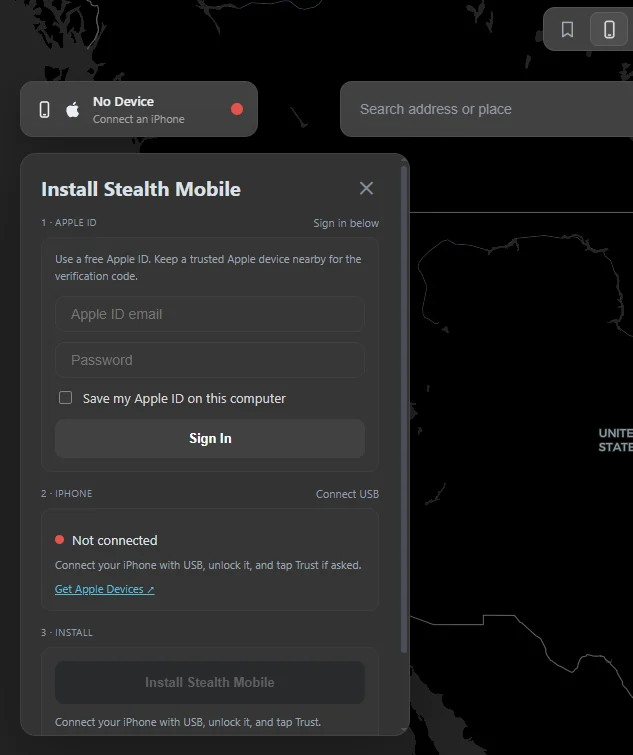
Install Stealth Mobile
The iPhone companion is installed from Stealth for Windows. Keep the iPhone connected and unlocked until the installer confirms setup is complete.
Before you start
- Install and open Stealth for Windows.
- Connect your iPhone with a USB cable, unlock it, and accept Trust This Computer if prompted.
- Install Apple Devices from the Microsoft Store if Windows does not detect the iPhone.
- Have an Apple ID available for the signing step. If Apple requests a verification code, enter it in the installer.
Install from Windows
- Open Stealth and choose Install Stealth Mobile.
- Select the connected iPhone and follow the setup steps shown in the window.
- Wait while Stealth prepares, signs, and installs the app and its connection pairing.
- On the iPhone, enable Settings → Privacy & Security → Developer Mode if prompted, then restart when iOS asks.
- Open Settings → General → VPN & Device Management and trust the developer entry if iOS asks.
First connection on iPhone
Open Stealth Mobile, tap Connect, and start LocalDevVPN when asked. Approve the iOS VPN and Local Network prompts. Keep Developer Mode enabled while using the companion app.
Free Apple developer signing profiles expire. If Stealth asks you to renew, reconnect the iPhone to Windows and run Install Stealth Mobile again.
Do not email your Apple ID password or verification code to support. Enter account details only in the expected Apple sign-in step in Stealth’s installation or refresh flow.
If connection setup is not ready after installation, follow Connect your iPhone →
Your two accounts have different jobs
Your Stealth email proves that you have access to the product. Your Apple account signs the iPhone installation. They do not need to use the same email. Keep track of the Apple account used for installation because an in-place signing refresh needs that same account.
If needed, create an Apple Account before starting. Keep a trusted Apple device nearby for verification. Enter credentials in the installation flow; a support message or Discord conversation is never the place to share them.
Finish the welcome guide
After opening Stealth on the iPhone, work through its welcome guide rather than guessing which permission is missing. It covers the pairing file, LocalDevVPN, local network access, and the connection check. Completed checks help you see what is ready and which requirement still needs attention. You can return to the guide from Settings.
Install LocalDevVPN when requested and allow its VPN configuration in iOS. This is the local developer connection used by Stealth; it is not a general privacy VPN. Return to Stealth after enabling it and wait for a confirmed connection.
Choose permissions deliberately
Local Network is needed for the local connection. Map location access is used to show your actual position on the map; it does not choose your simulated destination. Optional background access and renewal notifications support their related features. The setup guide and App permissions screen let you request permissions, while iOS decides which system prompt appears.
If you previously denied a permission, iOS may send you to Settings rather than asking again. Change the relevant permission there, return to Stealth, and retry the incomplete check. Do not reset every permission just to fix one missing requirement.
Installation expiry is separate from paid access
Your Apple provisioning profile has its own expiry date. A valid subscription or Lifetime plan does not prevent that profile from expiring. Read Refresh the iPhone installation before the date shown in the app. If the app can no longer open, use Windows to reinstall it. Refreshing the profile renews the installed version; newer app versions are installed through Windows.
Still need a hand?
For community help, visit Get support. For private account or billing questions, email support@getstealth.net. Include your app version, iOS or Windows version, the step you reached, and the exact error. A screenshot of the error helps; hide email addresses and other personal details first. Never send passwords, verification codes, pairing files, or signing certificates.